3 minutes
Proper filter setup is the first and most important step after registration. Without it, the scanner will show all found arbs, including those that don't suit you. In this article, we'll cover the minimum settings to get you started.
Table of contents
How to open the filter
On the arbs list page, click the Filter button on the left side of the toolbar (slider icon). A window with four sections will open: General, Markets, Sports, and Bookmakers.
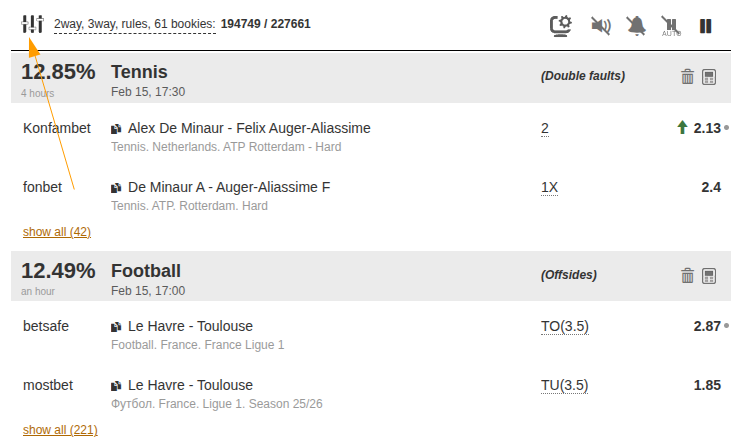
Step 1. Set up profit and general parameters
The General section opens first. It contains the key search parameters.
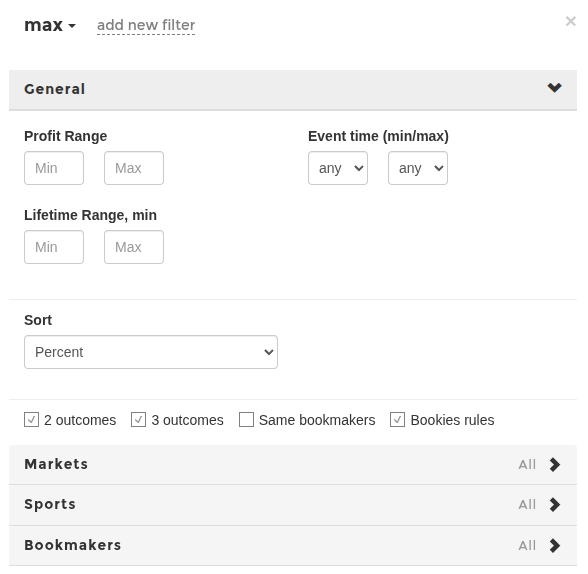
- Profit — the arb profit range in percent. We recommend starting with: Min = 1, Max = 15. Arbs below 1% often disappear faster than you can place bets. Arbs above 10–15% frequently occur due to line errors and may be voided.
- Event time — filter by match start date. You can leave it as "any" by default.
- Lifetime, min — minimum time the arb must exist. If arbs disappear too quickly, set Min = 1–2.
- Sort — leave it as Percent so the most profitable arbs appear at the top.
Pay attention to the checkboxes:
- 2-way / 3-way — determines the number of arb outcomes. Beginners should start with 2-way — they're easier to calculate.
- 2 or more bets at one bookmaker — allows internal arbs (both outcomes at the same bookmaker).
- Apply bookmaker rules — keep this enabled to exclude impossible combinations.
Step 2. Set up markets
Open the Markets section. Here you choose which bet types participate in the search.
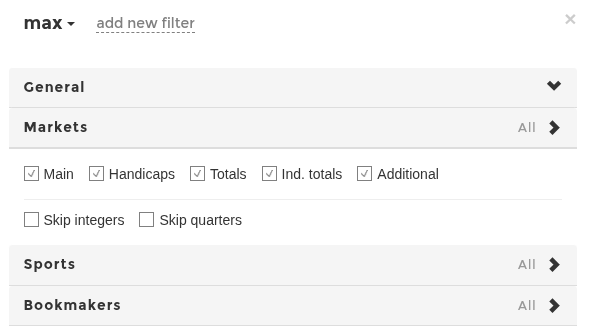
- Main — 1x2 outcomes, win/draw. Enable this one for sure.
- Totals — over/under. Recommended — a popular market with many arbs.
- Handicaps — can be enabled, but beginners should first understand how they work.
- Individual totals and Additional markets — you can skip these at first.
The checkboxes Hide integers and Hide quarters filter specific line values — leave them unchecked for now.
Step 3. Choose sports
Open the Sports section. All sports are enabled by default.
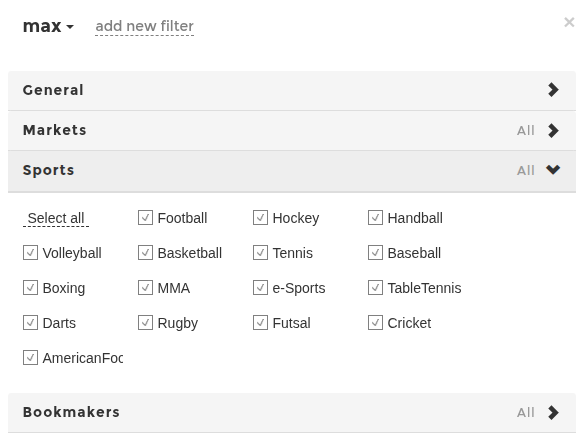
Keep the sports you're familiar with. This isn't required for earning on arbs, but it will help you navigate events better at first.
Tip: Football, Hockey, Basketball, Volleyball and Tennis are the most popular sports with the highest number of arbs.
Step 4. Choose bookmakers
Open the Bookmakers section — this is the most important setting.
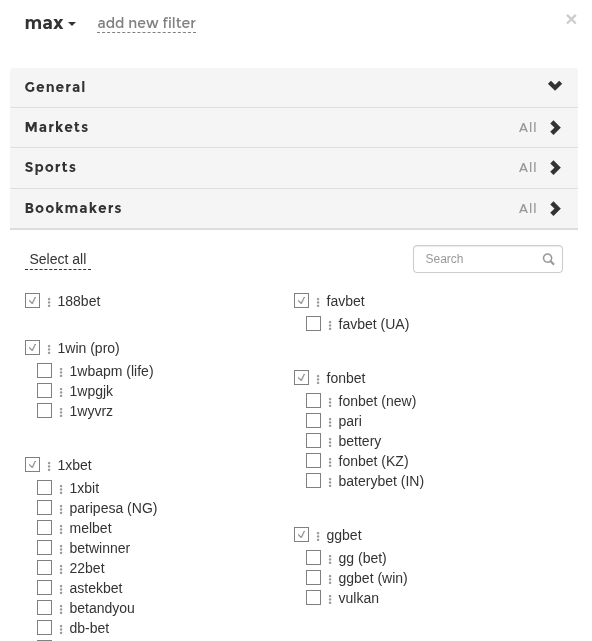
Keep enabled only the bookmakers where you have an account. An arb is useless if you can't place a bet at one of the bookmakers. Each bookmaker can be in one of three states:
- Enabled (checkmark) — arbs with this bookmaker will be shown.
- Required (double checkmark) — only arbs that include this bookmaker will be shown.
- Disabled — the bookmaker is excluded from search.
Beginner tip: start with 5–10 bookmakers where you're already registered. Don't enable all of them — it will clutter the feed with arbs you can't use. Click the settings icon (colon next to the name) for advanced options: odds range, commission, domain.
Summary
| Parameter | Beginner recommendation |
|---|---|
| Profit | From 1% to 15% |
| Sorting | Percent |
| Markets | Main + Totals |
| Outcomes | 2-way |
| Sports | Football, Hockey, Basketball, Volleyball и Tennis |
| Bookmakers | Only where you have an account (5–10) |
After applying the filter, check the filter bar below the toolbar — it shows a brief summary of active parameters. Next to it you'll see the number of arbs found. If there are too few arbs, try expanding the bookmaker list or lowering the minimum profit.
A saved filter is tied to a section (arbs, valuebets, middles) and mode (prematch or live). You can create multiple filters with different settings and switch between them by name at the top of the filter window.
May be useful